CalendarAssistant is a photo/screenshot to calendar app for iPhone. It uses AI to read event details from images, then turns them into editable calendar events you can save to the iOS Calendar app.

Turn Any Photo or Screenshot Into a Calendar Event
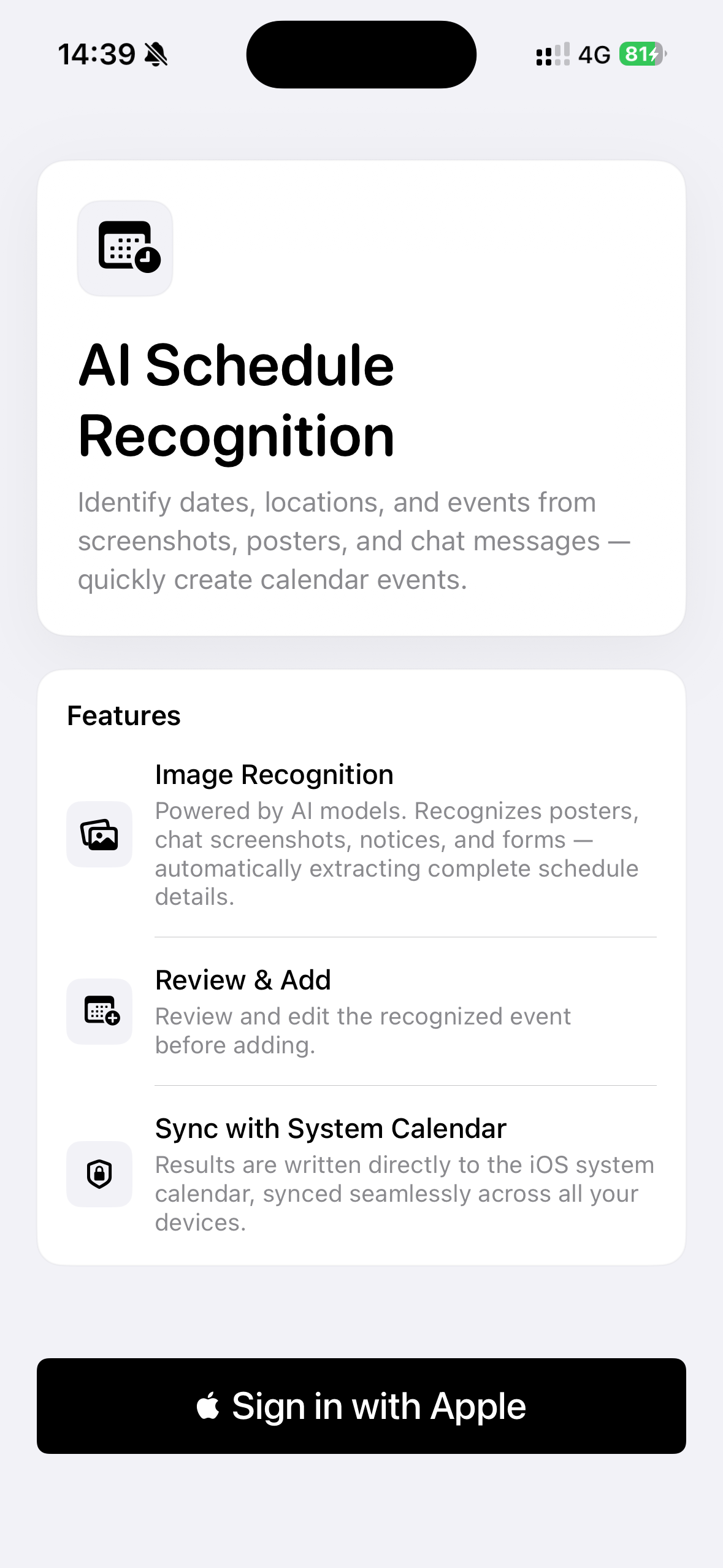
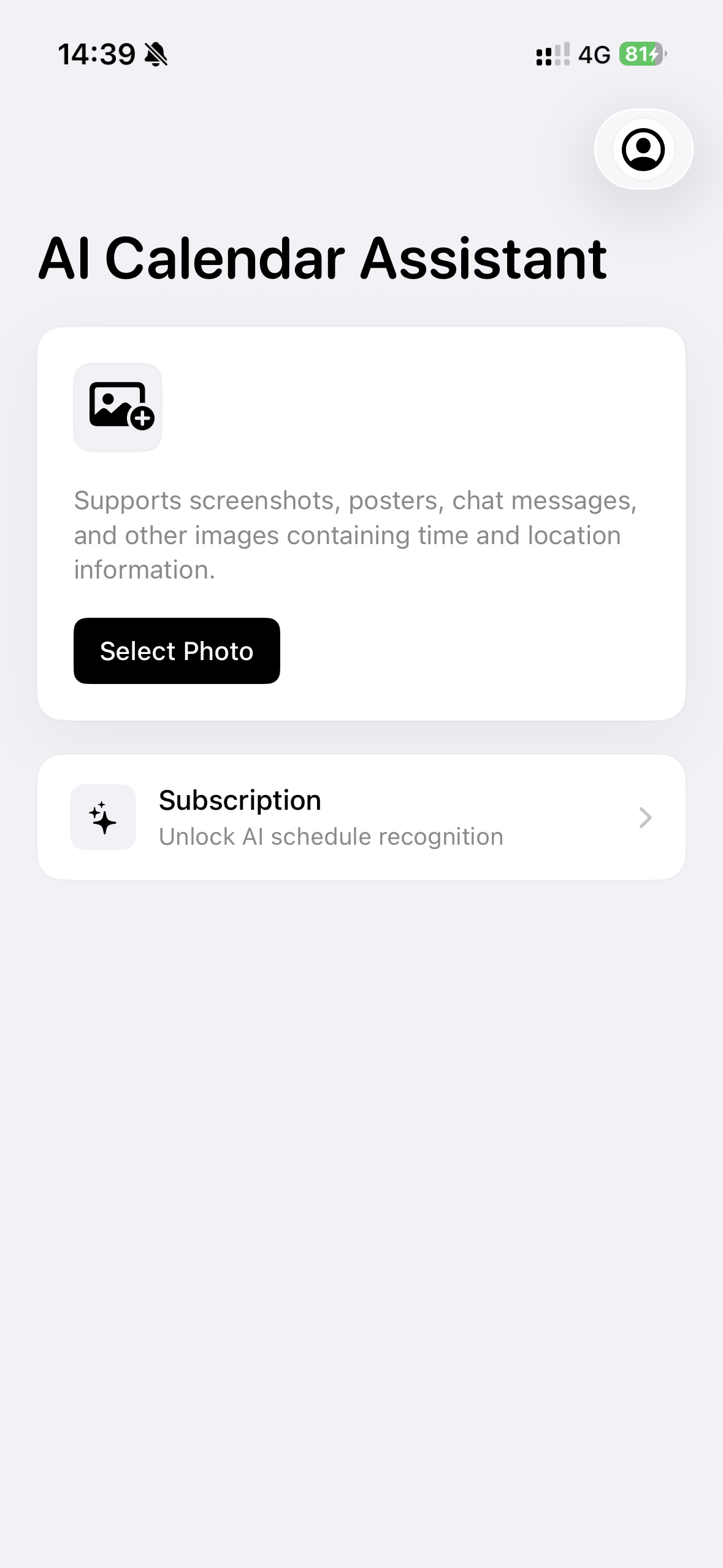
Event information often lives inside images: a concert poster, a meeting screenshot, a school notice, an appointment card, a conference flyer, or a photo of a printed schedule. CalendarAssistant helps you convert that visual information into a real calendar entry without typing every detail by hand.
Choose a photo or screenshot, let AI extract the date, time, title, location, and notes, then review the result before saving it to Calendar.
What Users Are Saying
"I just screenshot an event poster and CalendarAssistant turns it into a calendar event. It saves me from typing dates and times manually."
"The photo to calendar workflow is exactly what I needed for school notices and appointment cards."
"I like that I can check the event before saving. The AI does the heavy lifting, but I still stay in control."
"Perfect for turning chat screenshots into calendar reminders. Simple and focused."
"No clutter. Pick an image, preview the event, add it to Calendar."
Photo/Screenshot to Calendar: Common Use Cases
CalendarAssistant is built for everyday scheduling moments where the event details are visible but not easy to copy.
- Convert a screenshot of a meeting invitation into a calendar event
- Add a calendar event from a photo of a flyer or poster
- Turn a school notice, office memo, or appointment card into a reminder
- Save webinar, workshop, concert, or conference details from an image
- Create calendar entries from printed schedules, forms, receipts, and documents
- Extract dates and deadlines from screenshots shared in messages or email
Key Features
AI Event Recognition From Images
CalendarAssistant reads event images and extracts structured calendar details. It can identify useful information such as event names, dates, start times, end times, locations, and notes from photos and screenshots.
Review Before Adding to Calendar
Every recognized event opens in a preview step before it is saved. You can confirm the extracted details, adjust the title, update the time, add notes, or correct anything the image did not make clear.
Save Directly to iPhone Calendar
After review, CalendarAssistant adds the event to the system Calendar app. The event works with your existing iPhone calendar accounts, iCloud sync, widgets, reminders, and notifications.
Built for Real Event Images
The app is designed for common photo/screenshot to calendar workflows, including posters, invitations, chat screenshots, appointment cards, notices, forms, receipts, flyers, and document photos.
Private Sign In With Apple
CalendarAssistant supports Sign in with Apple for a simple account experience on iPhone.
How It Works
- Choose a photo or screenshot that contains event information.
- Let CalendarAssistant recognize the schedule details with AI.
- Review the extracted event title, date, time, location, and notes.
- Edit anything that needs adjustment.
- Tap to add the event to your iPhone Calendar.
Why Use a Photo to Calendar App?
Manual calendar entry is slow when the event comes from an image. You have to switch between Photos, Messages, Mail, and Calendar, then copy dates and times without making a mistake.
CalendarAssistant shortens that workflow. It turns the image into an editable event draft, so you can move from “I should remember this” to “it is on my calendar” in a few taps.
Why Use a Screenshot to Calendar App?
Screenshots are one of the fastest ways to save information, but they do not send reminders. CalendarAssistant helps turn screenshots into calendar events, so important plans do not stay buried in your camera roll.
Use it when someone sends:
- A chat message with a meeting time
- A social media event announcement
- A booking confirmation screenshot
- A class, exam, or office schedule
- A deadline or appointment reminder
Designed for iPhone Calendar Workflows
CalendarAssistant does not replace your calendar. It helps you get image-based event information into the iOS Calendar app faster. Once the event is created, you manage it the same way you manage any other calendar entry.
FAQ
Q: What is a photo/screenshot to calendar app?
A: It is an app that reads schedule information from an image and helps turn it into a calendar event. CalendarAssistant uses AI to extract event details from photos and screenshots, then lets you review the event before saving it.
Q: Can CalendarAssistant add calendar events from screenshots?
A: Yes. If the screenshot includes enough schedule information, such as an event title, date, time, or location, CalendarAssistant can help convert it into an editable calendar event.
Q: Can I create a calendar event from a photo of a poster or flyer?
A: Yes. CalendarAssistant is designed for event photos, posters, flyers, notices, appointment cards, forms, and other images that contain dates or times.
Q: Can I edit the event before adding it to Calendar?
A: Yes. You can review and edit the recognized title, date, time, location, and notes before the event is created.
Q: Does CalendarAssistant replace the iOS Calendar app?
A: No. CalendarAssistant creates events for the system Calendar app, so your events can continue to work with your existing calendar accounts and iPhone settings.
Q: Why does the app need photo access?
A: Photo access is needed so you can select the image that contains the event information you want to convert into a calendar event.
Q: Why does the app need calendar access?
A: Calendar access is needed to save the confirmed event to your iPhone Calendar.
Q: Is the calendar event created automatically?
A: CalendarAssistant automates recognition from the image, but you still review the event before saving it. This helps prevent incorrect dates or times from being added without your confirmation.